Operate In Browser HMI
Open /hmi to inspect or operate a running project.
What Your URL Usually Looks Like
http://<host>:<port>/hmi- or a site-specific hostname your administrator or supervisor gave you
If the page is unreachable:
- confirm you have the right URL
- record the time and any error text
- use your local runbook or escalation contact
Quick start
- Open
/hmi. - Read the overview page first.
- Open the process page.
- Check trends if values look suspicious.
- Open alarms before trying operator actions.
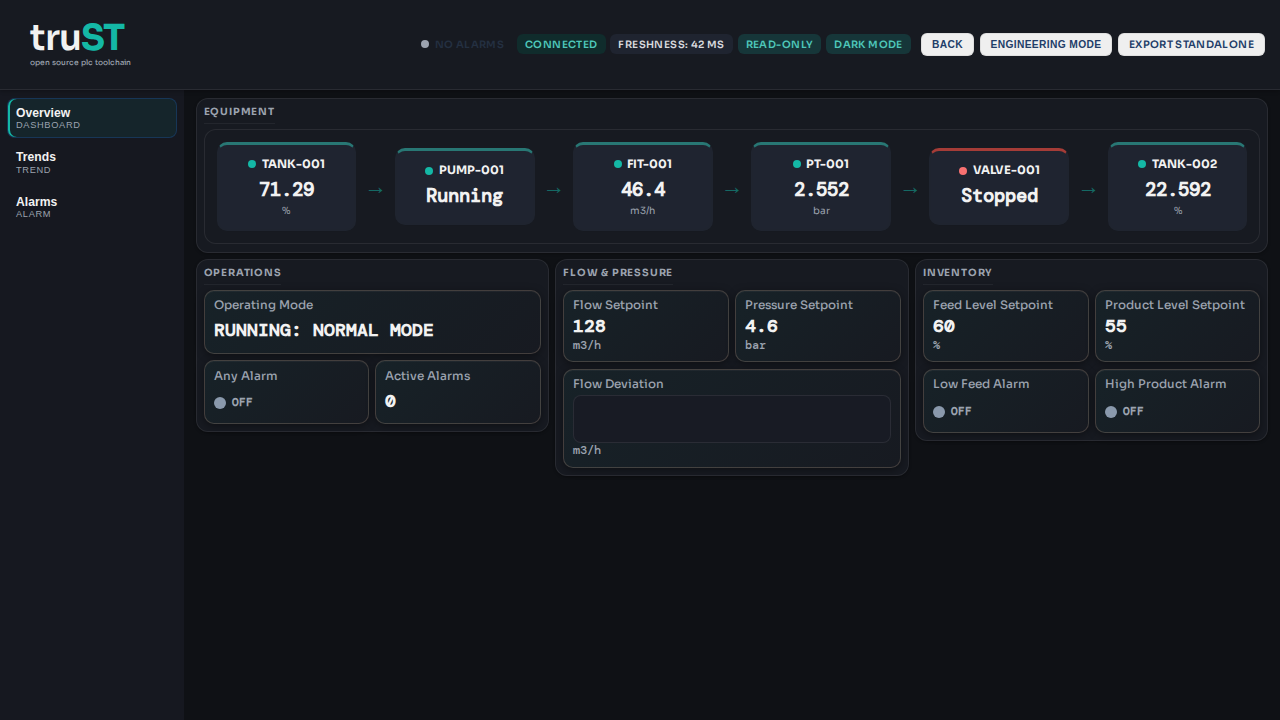
Figure: Start here: the HMI shows runtime connection state, freshness, alarms, and live process values. Open the Trends and Alarms pages from the left sidebar.
What Acknowledge means
- Acknowledge clears the banner state for the operator workflow.
- It does not guarantee that the physical cause is gone.
- If the alarm returns, follow your site procedure and escalation path.
Operator restrictions
- Force outputs only after procedure approval and field confirmation.
- Treat acknowledge as an operator workflow step; if the condition remains or returns, follow the site escalation path.
- Keep project edits in an authorized engineering session; operator sessions are for monitoring and approved actions.
Local Runbook
truST gives you the generic operator UI. Your plant still needs a site-specific runbook with:
- the HMI URL
- allowed usernames or access path
- escalation contact
- alarm actions
- start-of-shift checks
Template: