Operator Guide
Site-specific URLs, contacts, alarm actions, and shift procedures belong in a local runbook. The generic operator workflow is: open the HMI, confirm connection and freshness, check alarms, compare process context, and hand over open actions.
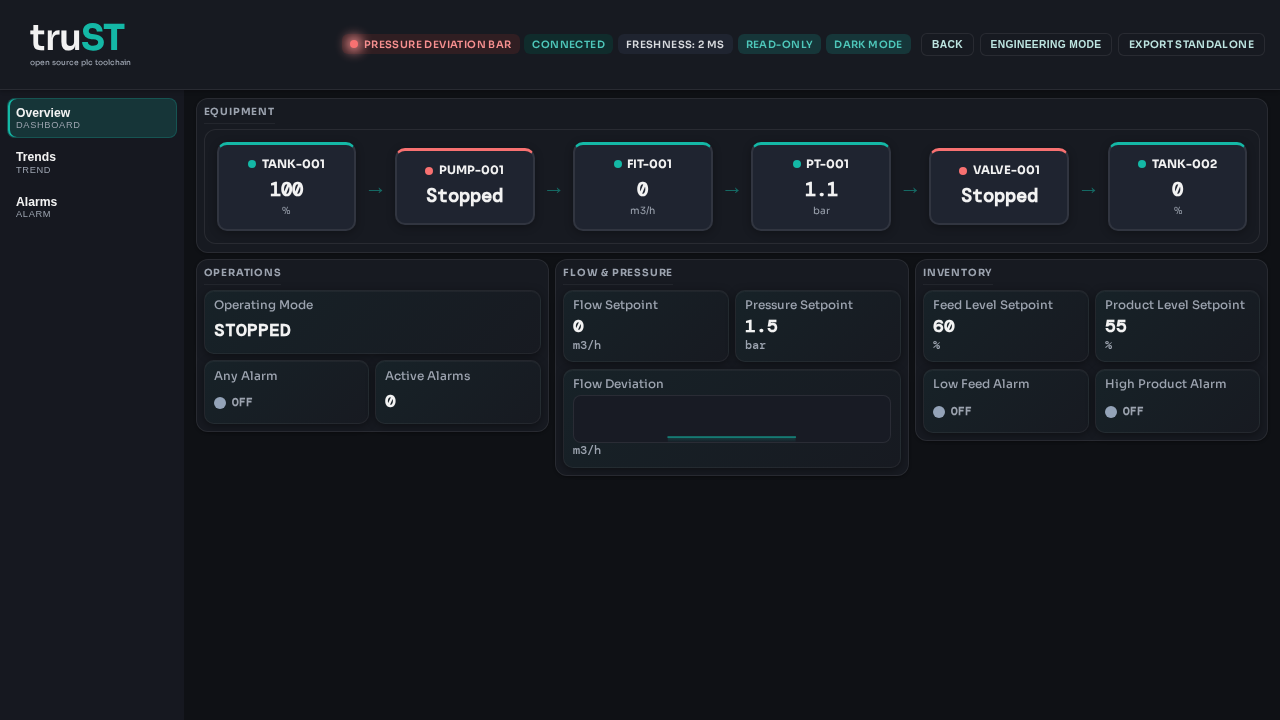
Figure: The Browser HMI overview shows the status strip, page navigation, equipment chain, and operations cards an operator checks before following the local runbook.
Guide
Daily shop-floor commands without developer jargon.
First-Time Setup
Start the PLC (zero‑config):
trust-runtime
Then open the Web UI and run the Setup wizard.
Use trust-runtime setup only for system‑wide I/O setup or headless devices.
Start / Stop
Start the PLC:
trust-runtime --project <project-folder>
From an empty folder:
trust-runtime
Stop the PLC:
trust-runtime ctl --project <project-folder> shutdown
Check Status
trust-runtime ctl --project <project-folder> status
You should see:
- state:
running - PLC name
- cycle timing
Or use the hybrid console:
trust-runtime play --project <project-folder>
/status at the prompt.
Monitor I/O
trust-runtime ctl --project <project-folder> io-read
Use the browser UI (if enabled):
http://<device-ip>:8080
In the Web UI:
- I/O → Inputs/Outputs shows live values.
- I/O → I/O configuration lets you set driver, mappings, and safe state.
In the hybrid console:
- Type
/io - Choose Read value to inspect I/O
- Choose Set value / Force value to change outputs (debug only)
What Happens on a Fault
If a fault occurs, the runtime:
- stops the program
- forces outputs to their configured safe state
- logs a fault event
Clear the fault by restarting:
trust-runtime ctl --project <project-folder> restart --mode cold
In the Web UI:
- Logs → Faults shows active faults with suggested fixes.
- Acknowledge once you’ve verified the fix.
Common Errors and Fixes
“No inputs/outputs mapped”
You see in the Web UI:
No inputs mapped yet.
Cause: missing io.toml or incorrect driver configuration.
Fix:
- Check that
io.tomlexists in your project folder. - If using system I/O, verify
/etc/trust/io.tomlexists. - Re-run system I/O setup (if needed):
trust-runtime setup. - Or open I/O → I/O configuration and save a driver config.
“No tasks configured”
You see in the Web UI:
No tasks configured yet.
Cause: missing config.st with a task declaration.
Fix:
- Ensure
src/config.stexists. - Rebuild:
trust-runtime build --project <project-folder>.
“Auth required”
You see in the Web UI:
auth required
Cause: control endpoint uses token auth.
Fix:
- In the Web UI, open Network → Access PLC to generate/claim a code.
- Or in the console:
/access startthen/access claim <code>. - Or provide token:
trust-runtime ui --token <token>.
“Control endpoint unreachable”
You see in the CLI:
Error: connect failed
Fix:
- Confirm the PLC is running.
- Verify the project folder is correct.
- Check firewall rules if using TCP control.
“Invalid driver”
You see in the CLI:
invalid I/O driver 'spi'. Expected: loopback, gpio, simulated, modbus-tcp, mqtt, or ethercat.
Fix:
- Re-run the wizard:
trust-runtime wizard. - Choose one supported driver:
loopback,simulated,gpio,modbus-tcp,mqtt, orethercat.
“Permission denied” writing system I/O
You see in the CLI:
Error: invalid config 'failed to create /etc/trust: Permission denied'
Tip:
- Run:
sudo trust-runtime setup --force - Or skip system I/O and use project I/O (
io.tomlin your project folder).
Restart Types
- Cold: full reset (safe for maintenance)
- Warm: keep RETAIN values
Update / Rollback
Deploy a new project folder (keeps last two known‑good project folders):
trust-runtime deploy --project <project-folder> --root <deploy-root>
Rollback:
trust-runtime rollback --root <deploy-root>
Deployment summary:
<deploy-root>/deployments/last.txt
Typical Daily Flow
1) Start PLC
2) Watch status + I/O
3) Stop PLC at end of shift
Watch Variables (Debug mode)
If debug mode is enabled in runtime.toml, you can:
- Add variables in Program → Variable watch
- See live values and force values for testing
If Something Looks Wrong
- Check power and wiring.
- Check I/O status in the UI.
- Check recent events:
trust-runtime ctl --project <project-folder> status - Restart cold if needed.