Run & Compile
Compile your program, then run it on the simulator — both from the Run card in the truST view, with honest status at every step.
Compile your program
Running Compile validates the whole project. On success you get a confirmation such as "Compile passed — 2 sources, no errors." and the Run card's passive line reads ✓ No known errors.
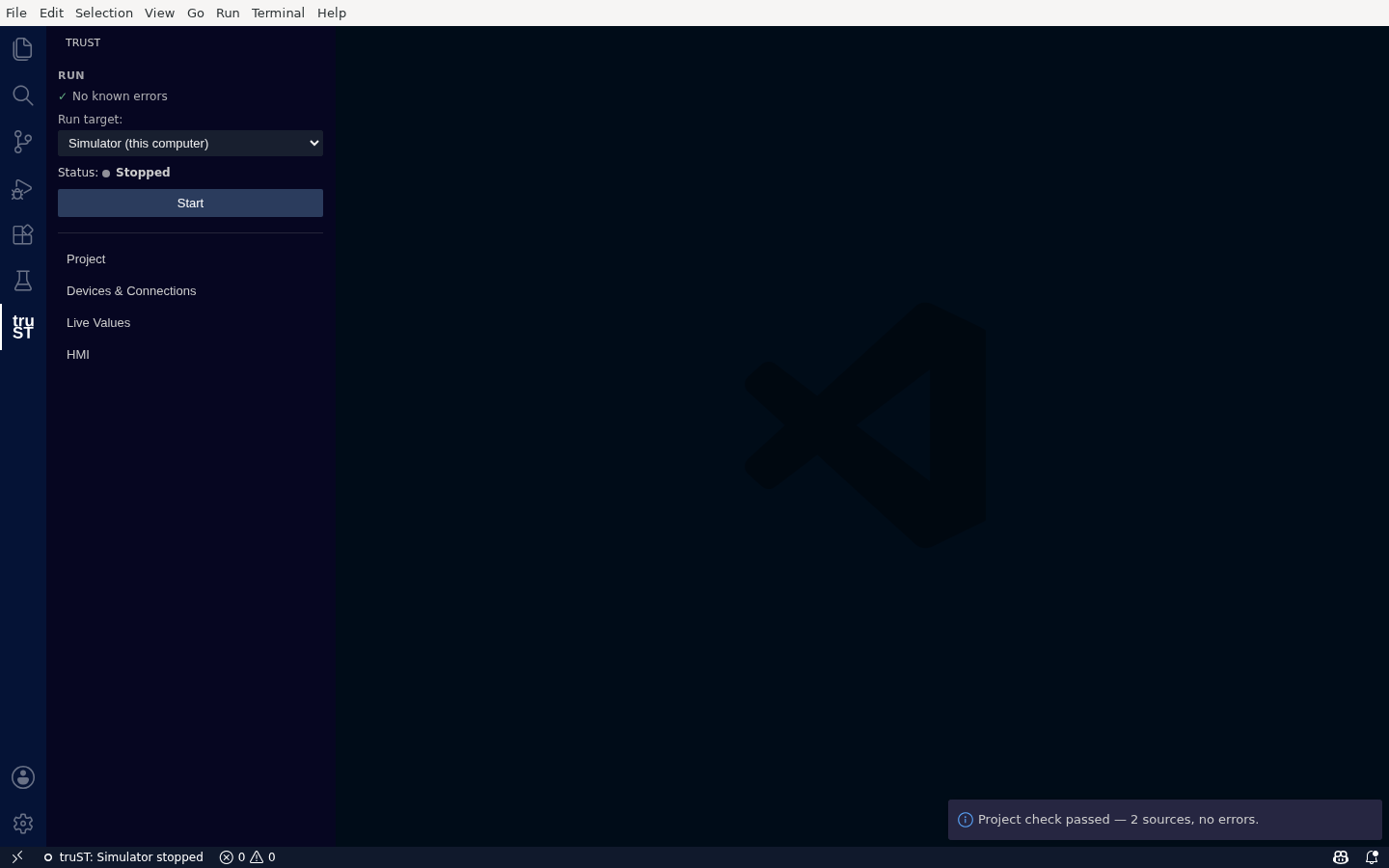
Compile validates the whole project before you run — the Run card shows "No known errors", the simulator selected, and a single Start button.
The ✓ No known errors line is diagnostics-derived: it means nothing is currently flagged, and it updates live as you edit. It never claims a build is good when it isn't.
When Compile fails
If the project has errors, they appear in VS Code's Problems panel with their IEC references (for example an undefined identifier on a specific line), and the Run card reflects that there are errors. Fix them in the editor — the Problems entries are clickable and jump to the source. truST is honest here: a broken config surfaces an error and a fallback, never a fake-green runtime.
Choose where it runs
Run target selects where the program runs. For a new project this is Simulator (this computer) — the built-in simulator, no hardware required. The dropdown lists only existing targets (the simulator, and any runtimes you've added in Devices & Connections); you add or connect targets there, not from this dropdown.
Run on the simulator
Press Start. truST compiles your program and runs it on the simulator; the status changes to
● Running and the button becomes Stop. The status bar mirrors this (truST: Simulator running).
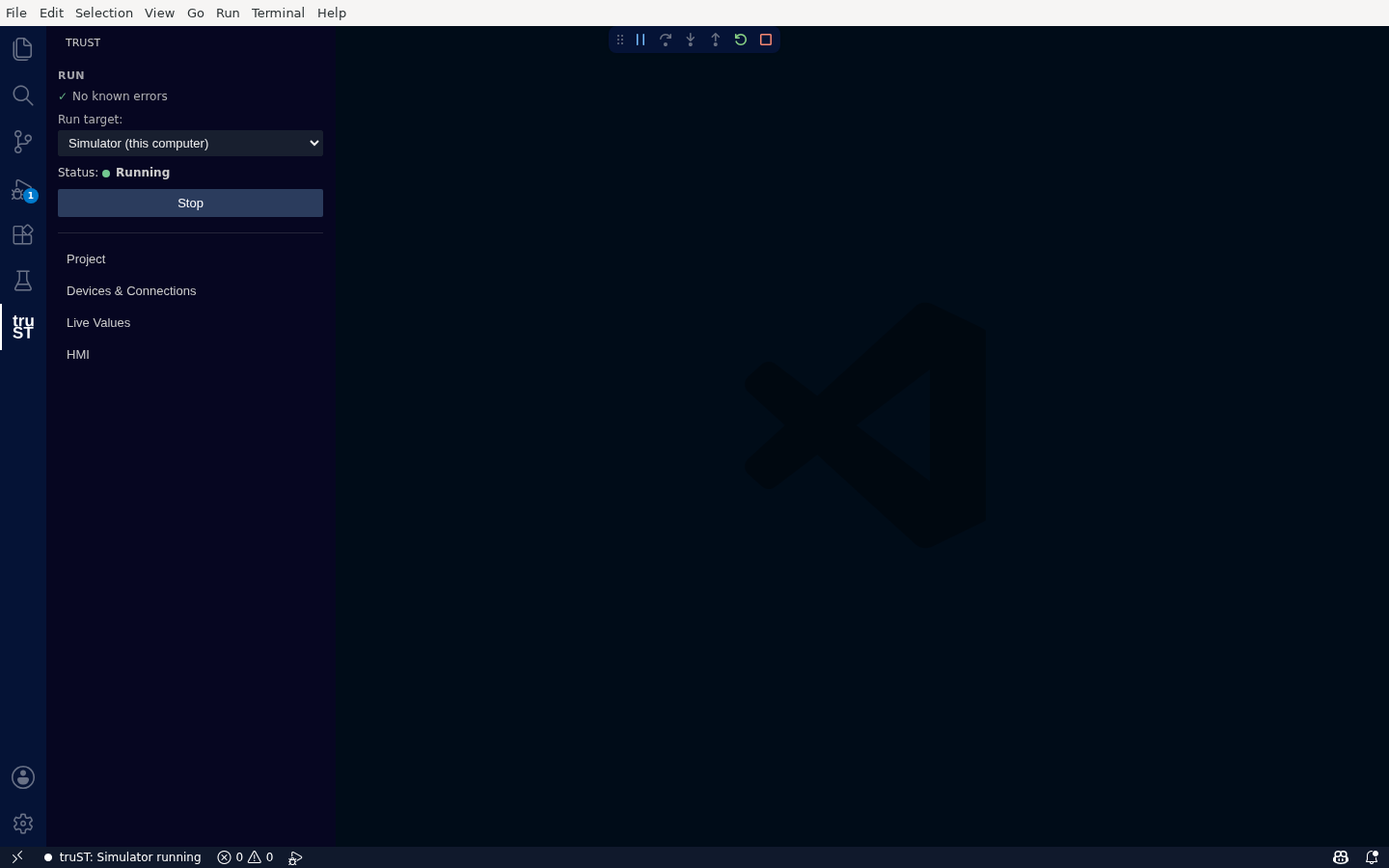
Start runs your program on the local simulator — honest Running status, one Stop button, and the same state echoed in the status bar.
- Start — compile, then run on the selected target.
- Stop — stop the simulator.
- Apply changes — appears when you've edited the source while the simulator is running, to hot-reload without a full restart (simulator only).
While it runs, open Live Values to watch and drive I/O, or set a breakpoint and use Debugging In VS Code to step through the logic.