Create A New Project
Create a new, runnable truST project from an empty folder — no config files to edit by hand.
1. Find truST and start a project
Click the truST icon in the Activity Bar (left edge). With no project open, the truST view shows one line — "Create or open a project to get started." — and three buttons:
- Create project — scaffold a new, runnable project.
- Open project — open an existing truST folder.
- Start from example — copy a ready-made starter.
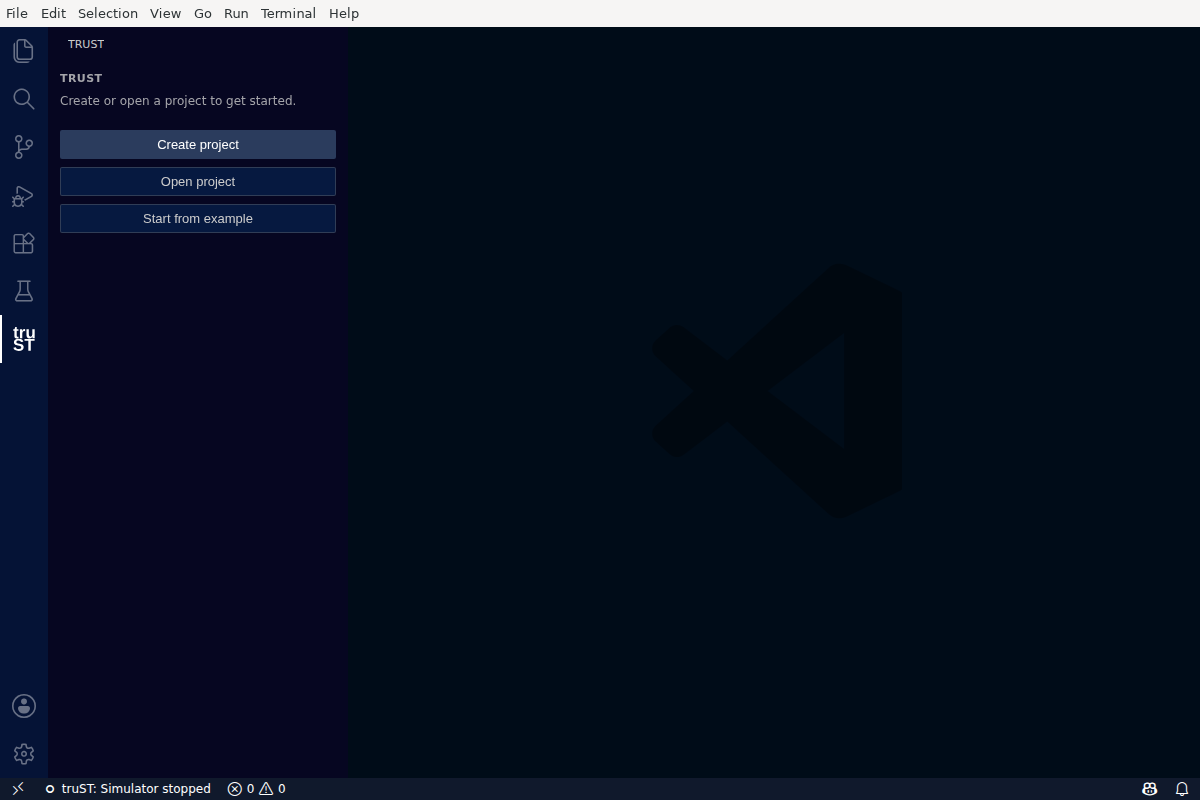
With no project open, truST shows exactly one next step: create, open, or start from an example.
2. Create the project
Click Create project and choose an empty folder (for example my-first-plc). truST scaffolds a
complete, runnable project and opens it. You never edit a config file to get started — the generated
runtime.toml and io.toml are valid out of the box with simulated I/O.
What gets created:
my-first-plc/
  trust-lsp.toml      # project settings (include_paths = ["src"])
  runtime.toml        # runtime configuration (control endpoint, simulator defaults)
  io.toml             # I/O wiring, set to simulated so it runs with no hardware
  src/
    Main.st           # your program, starting from an empty PROGRAM Main
    config.st         # a CONFIGURATION that instantiates Main (resource + task + PROGRAM Main WITH)
The config.st configuration is what makes the project actually run, and it opens warning-clean from the
first second.
3. Recognize the workspace
src/Main.st opens in the editor, and the truST view switches to the Run card:
- ✓ No known errors — your project is valid.
- Run target: Simulator (this computer) — where the program will run.
- Status: ● Stopped, with a single Start button.
- Quick links: Project, Devices & Connections, Live Values.
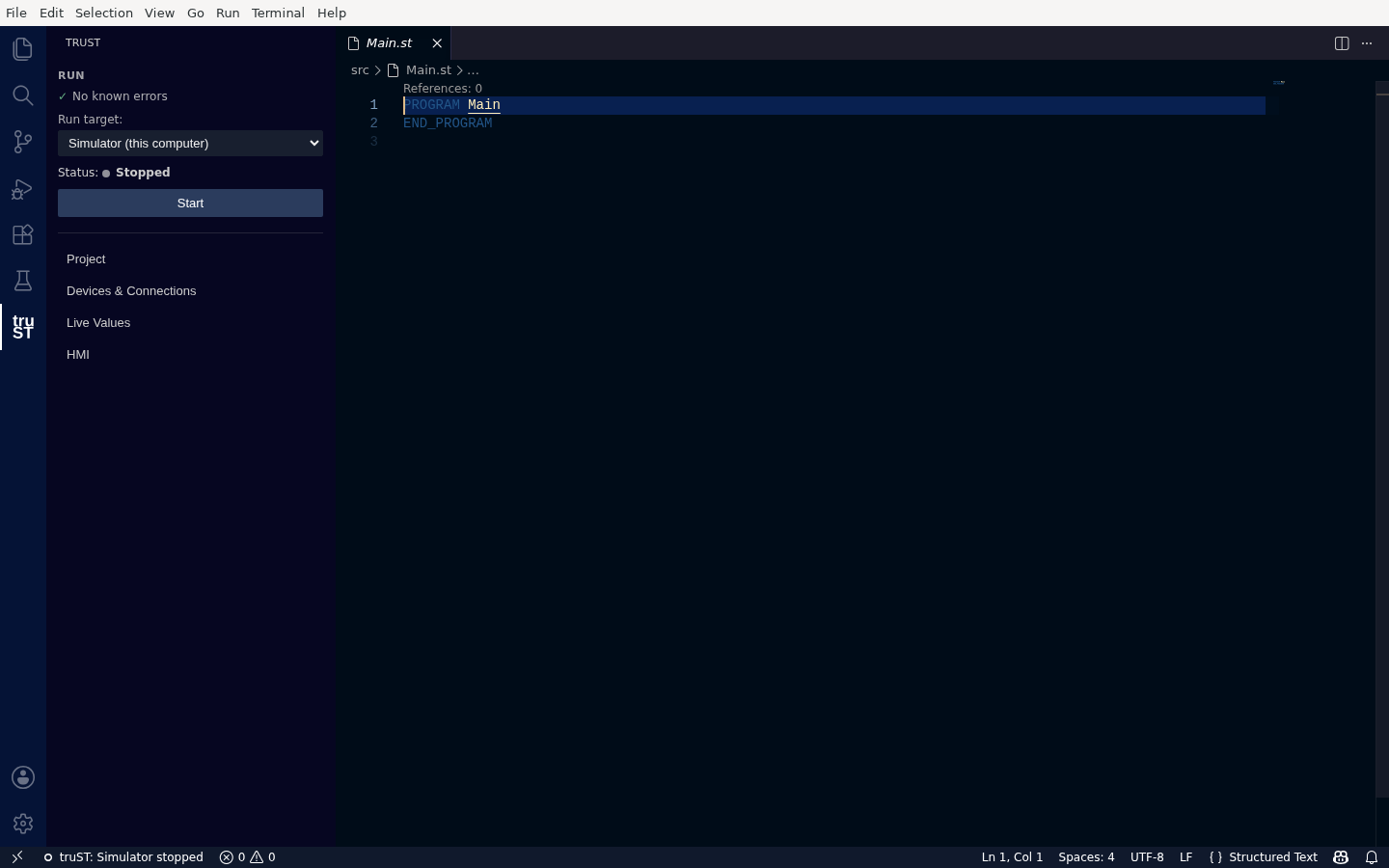
A new project opens to the Run card — "No known errors", the simulator selected as the Run target, and a single Start button.
Success signal: the editor shows src/Main.st (language mode "Structured Text"), and the Run card
shows ✓ No known errors with the simulator selected.
If it doesn't work: if the view still shows the create/open buttons, the folder wasn't recognized as a
truST project (no trust-lsp.toml) — reopen the folder you created.
Next
- Write your logic: Program In VS Code
- Run it on the simulator: Build, Validate, Test
- Prefer a ready-made starter? Start from an example
- Project Layout