Program In VS Code
This is the primary truST engineering workflow.
Start with the shipped tutorial project in desktop VS Code.
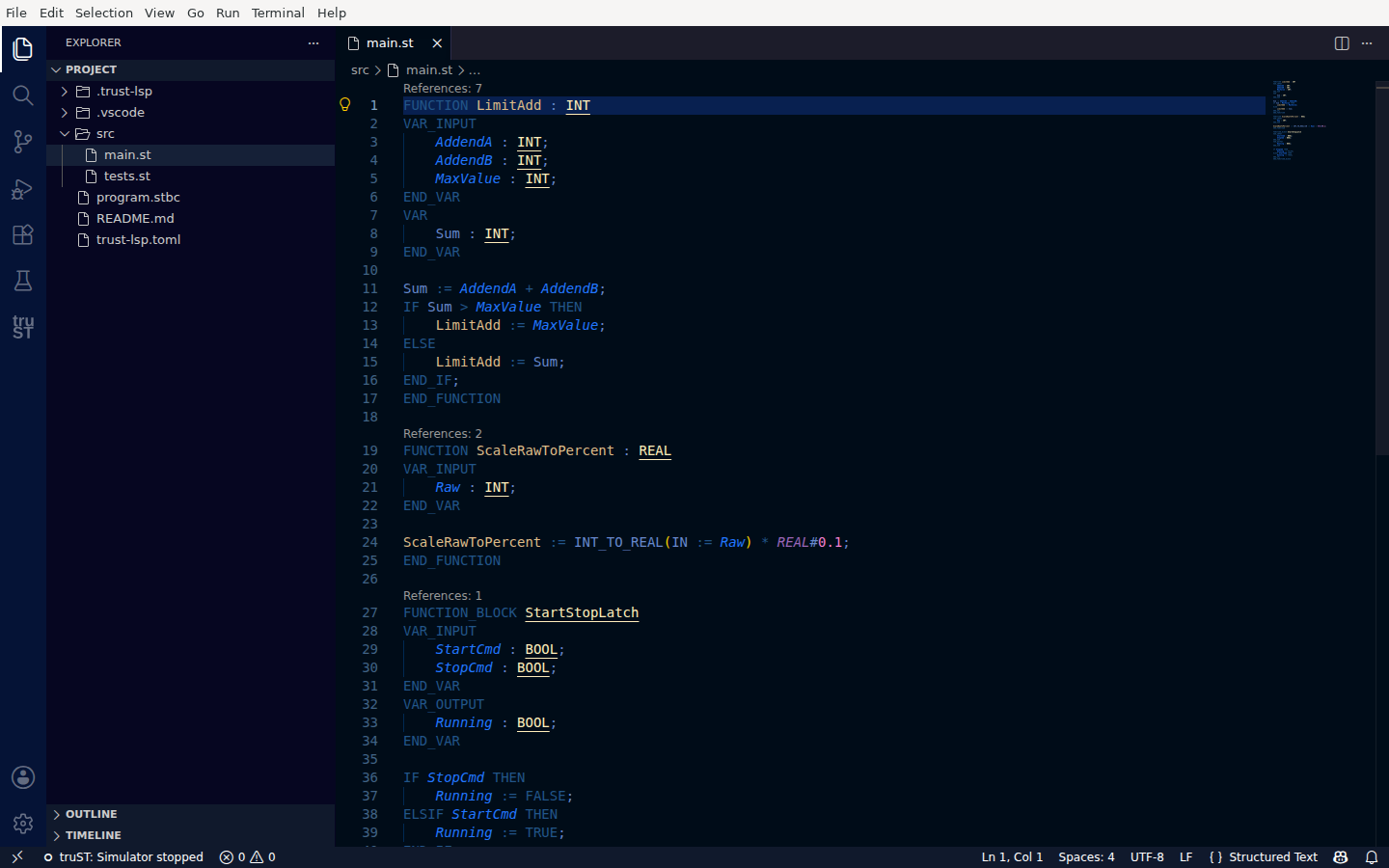
Structured Text with full syntax highlighting and inline reference counts (CodeLens).
What You Get In One Window
- IEC-aware diagnostics and semantic highlighting
- go to definition, references, rename, and formatting
- Live Values with live I/O and memory (read + write/force)
- the debugger with breakpoints, stepping, locals, and call stack
Use A Shipped Project First
Start with a shipped tutorial:
examples/tutorials/12_hmi_pid_process_dashboard
Open it:
code examples/tutorials/12_hmi_pid_process_dashboard
Quick Start
- Install
truST LSP. - Open the tutorial project in VS Code.
- Open
src/main.standsrc/config.st. - Press Start on the Run card to run the program on the simulator (see Run & Check).
- Open Live Values to inspect
%I,%Q, and memory while it runs (see Live Values). - Set a breakpoint in the control logic and step through it (see Debugging In VS Code).
- Rename or jump to the control function block to confirm the LSP flow.
- Open the HMI preview once the editor-side behavior makes sense.
IEC-Aware Diagnostics
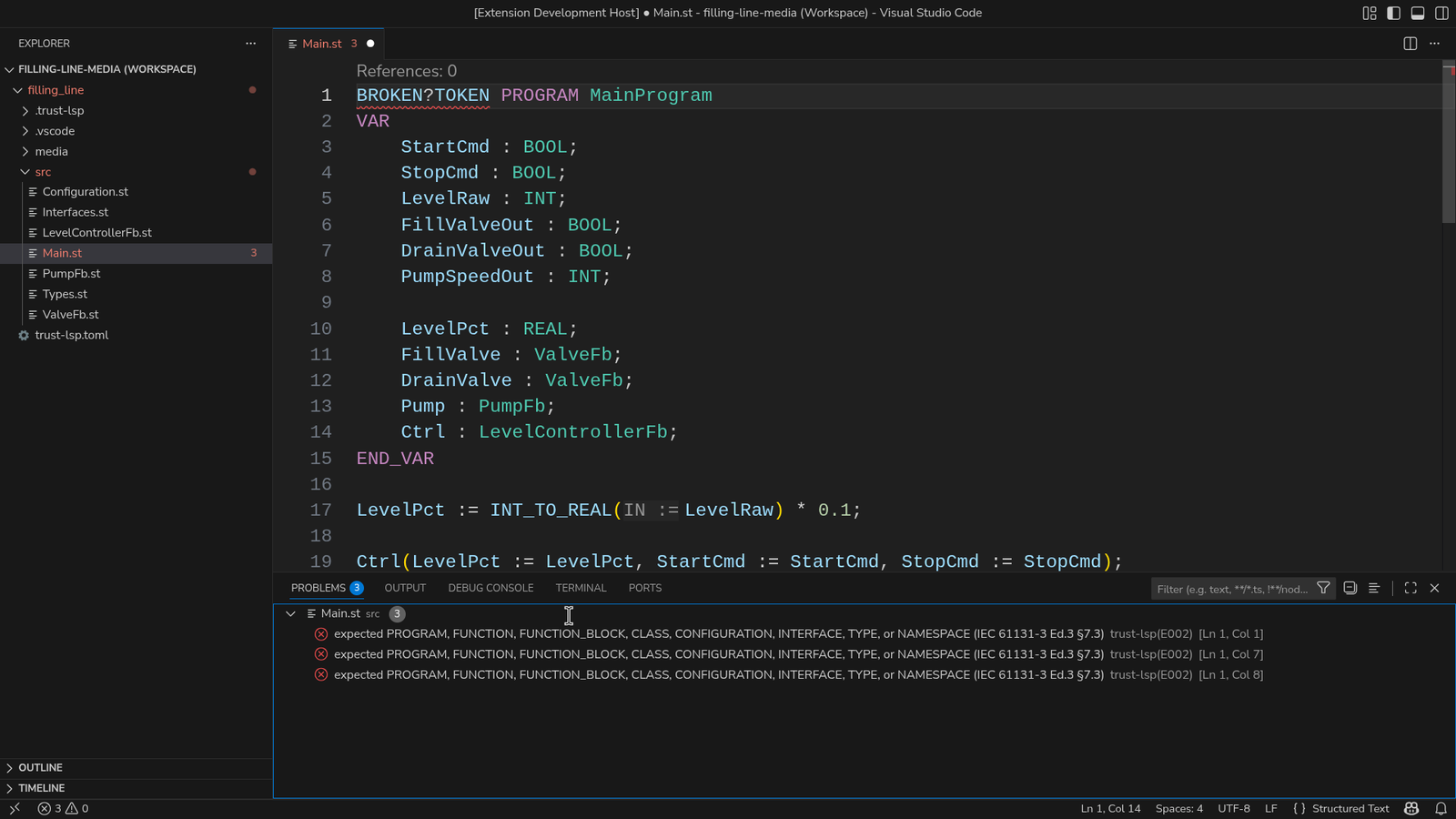
Figure: The Problems panel reports the IEC rule directly, so the editor tells you what language rule was broken instead of only showing a generic parser failure.
Completion And Hover
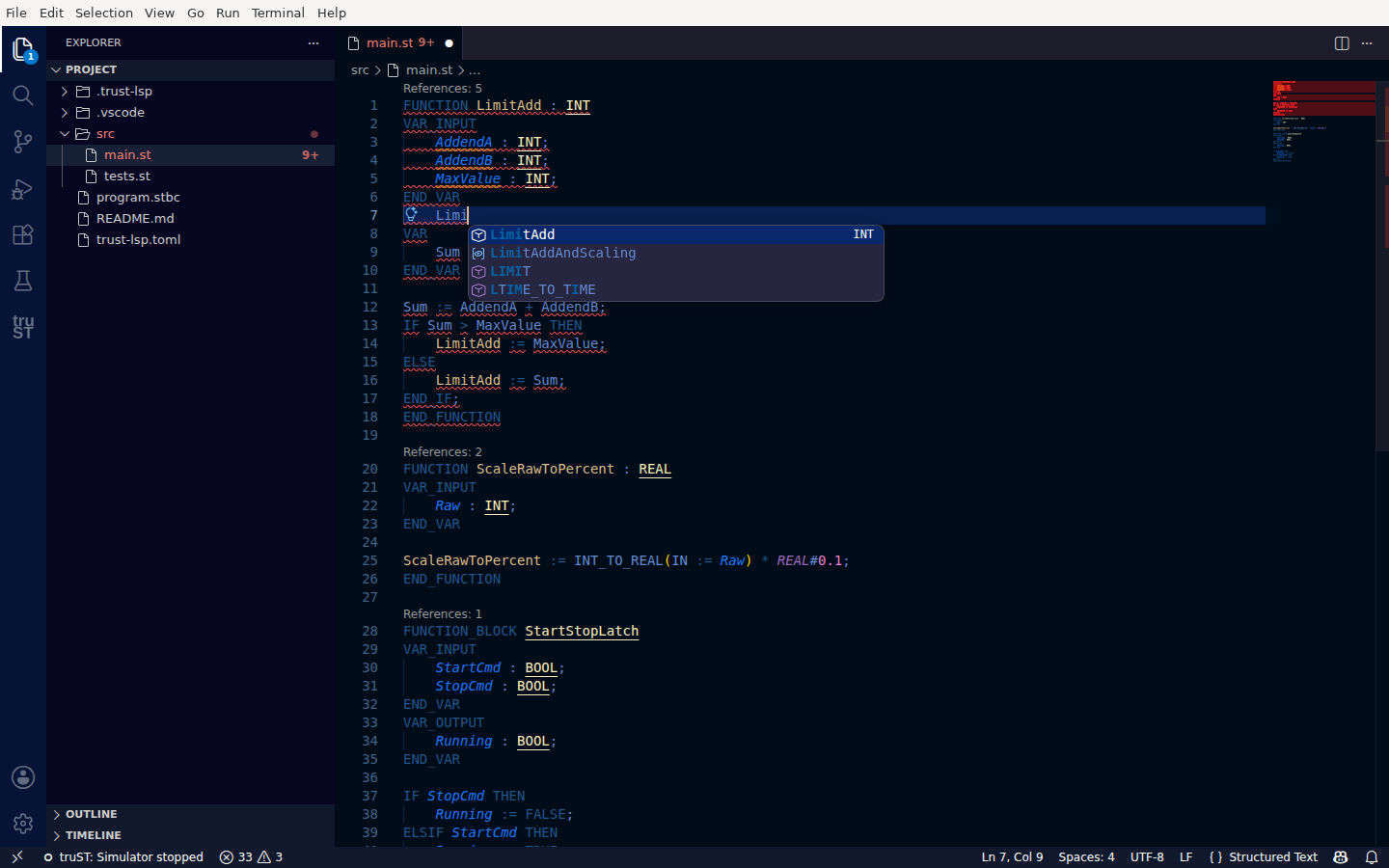
Context-aware completion from the language server — suggesting functions, function blocks, and standard library symbols as you type.
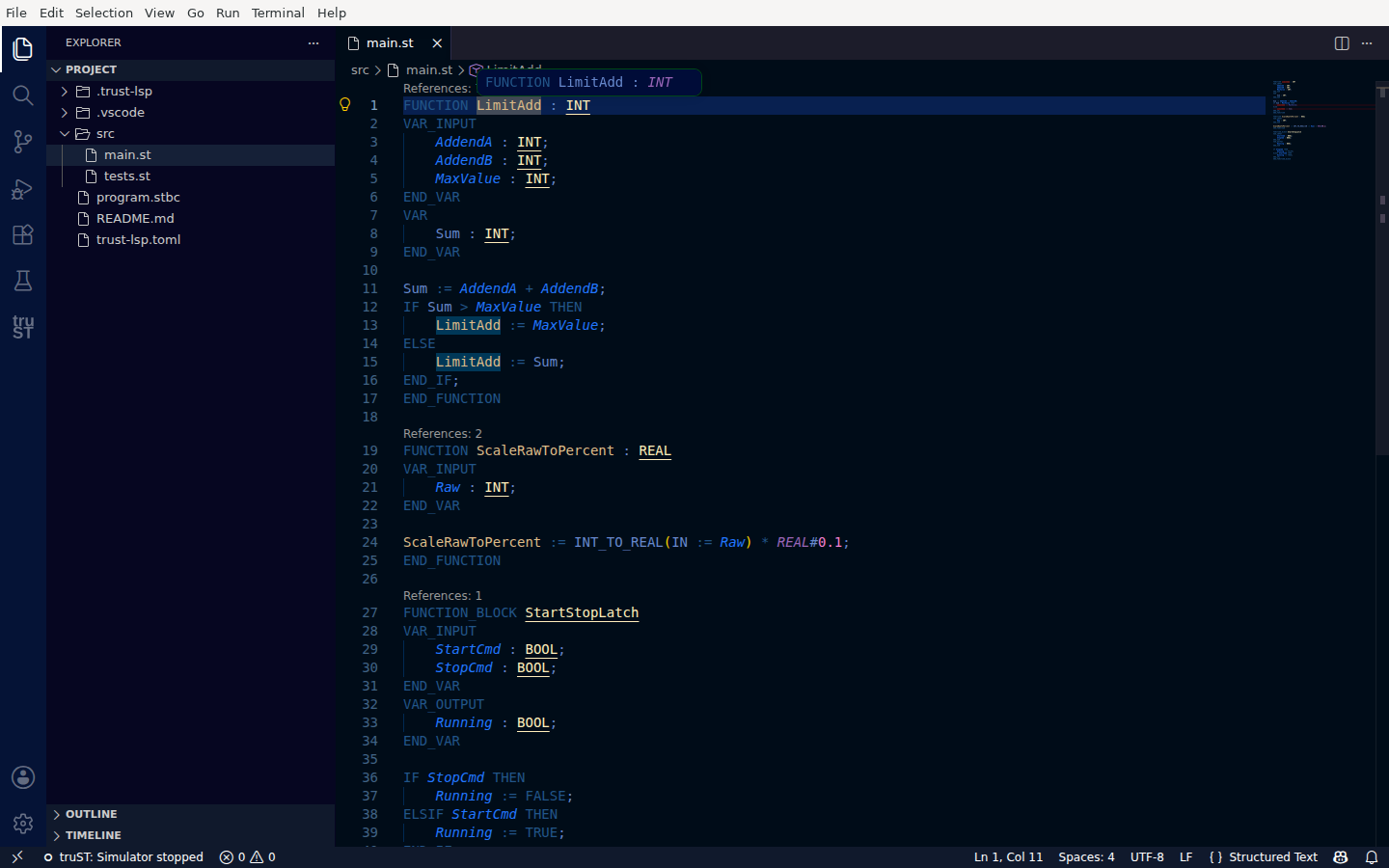
Hover shows the resolved signature; go-to-definition, references, and rename work the same way across files.
Debug Live
Set a breakpoint and step through your logic with VS Code's debugger — see Debugging In VS Code for the full flow (breakpoints, current-line highlight, Variables, and the Call Stack).
Refactor Safely
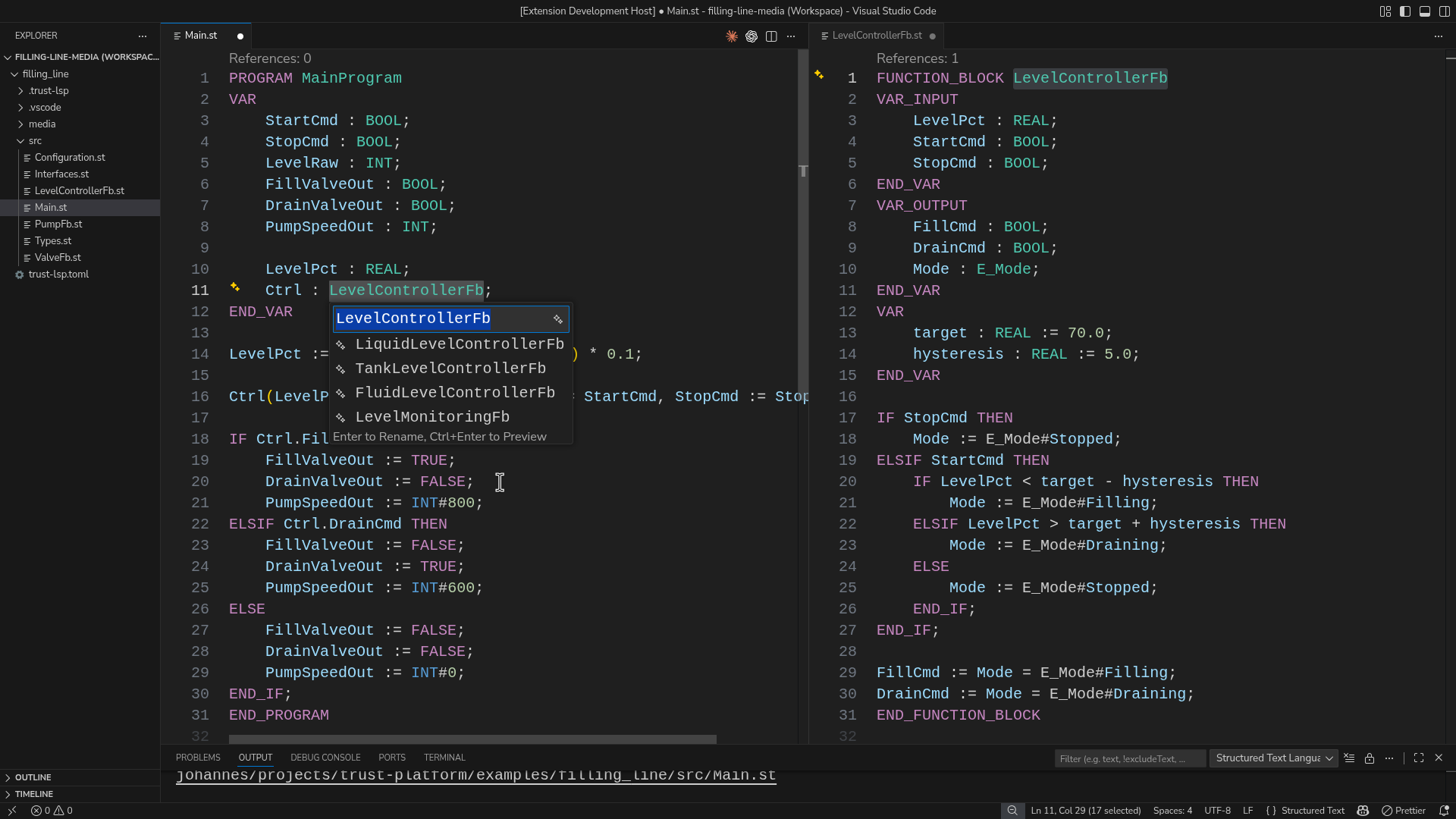
Figure: Rename a Structured Text symbol across files from the editor and preview the affected definition before you apply the change.
Safe Signals In The Tutorial
The tutorial already maps safe proof signals:
%IX0.0=StartCmd%IX0.1=StopCmd%IX0.2=PressureSpikeCmd%IX0.3=BypassCmd%QX0.0=PumpRunning%QX0.1=HighPressureAlarm%QX0.4=BypassOpen
Verify it works:
- toggle
%IX0.0 - confirm Live Values changes
- open the HMI from the running project for visual confirmation
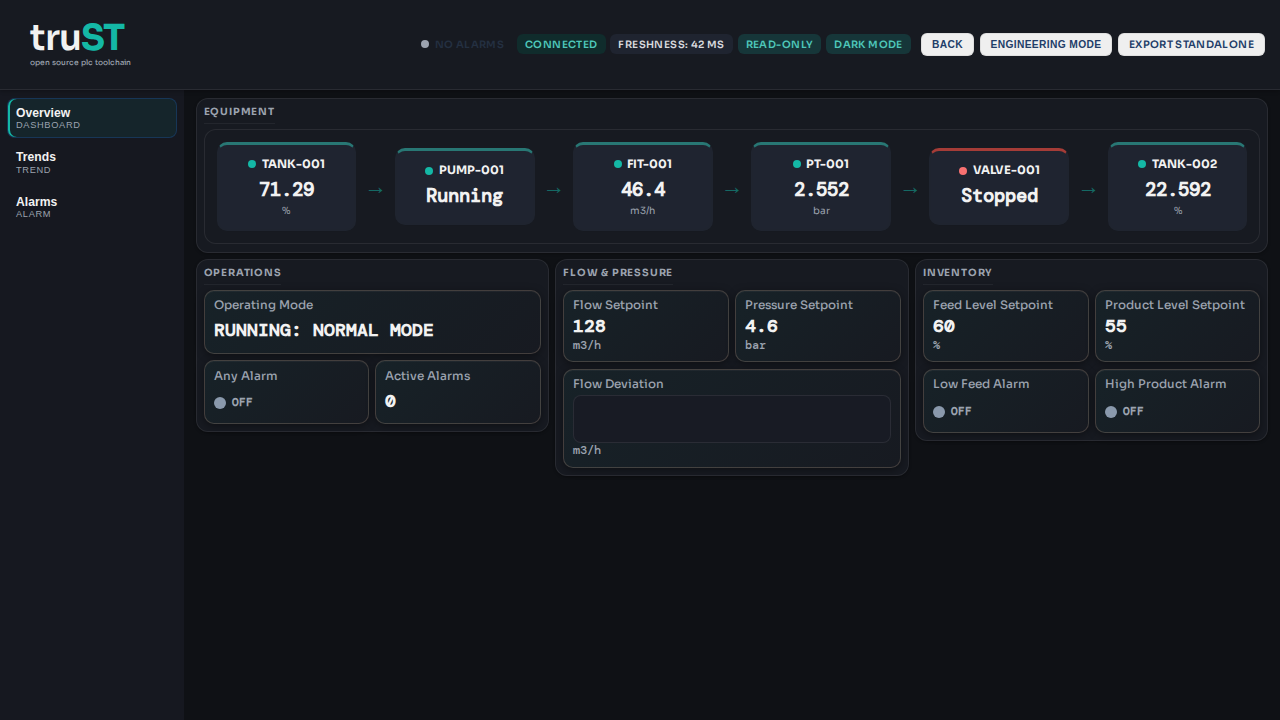
Figure: /hmi for the same shipped tutorial project once the runtime is
connected. Use it as the operator-side confirmation after the editor,
diagnostics, Live Values, and debugger all look correct.
If It Fails
- no commands in Command Palette: go to Installation
- the program won't run or connect: go to Run & Check
- values do not move: go to I/O Binding
- diagnostics appear after your edit: use the clickable Problems panel
- a realistic first failure is a one-letter typo such as
PumpRuninginstead ofPumpRunning; click the Problems entry to jump straight to the bad line