Installation On Windows, macOS, And Linux
Install the truST editor extension and runtime bundle on Windows, macOS, or Linux.
Step 1: Install VS Code
Download VS Code from https://code.visualstudio.com/ and install the stable build for your operating system. If you already use VS Code for PLC or industrial projects, keep that install and move to step 2.
Step 2: Install truST LSP From The Marketplace
Open the Visual Studio Marketplace listing for truST LSP:
https://marketplace.visualstudio.com/items?itemName=trust-platform.trust-lsp
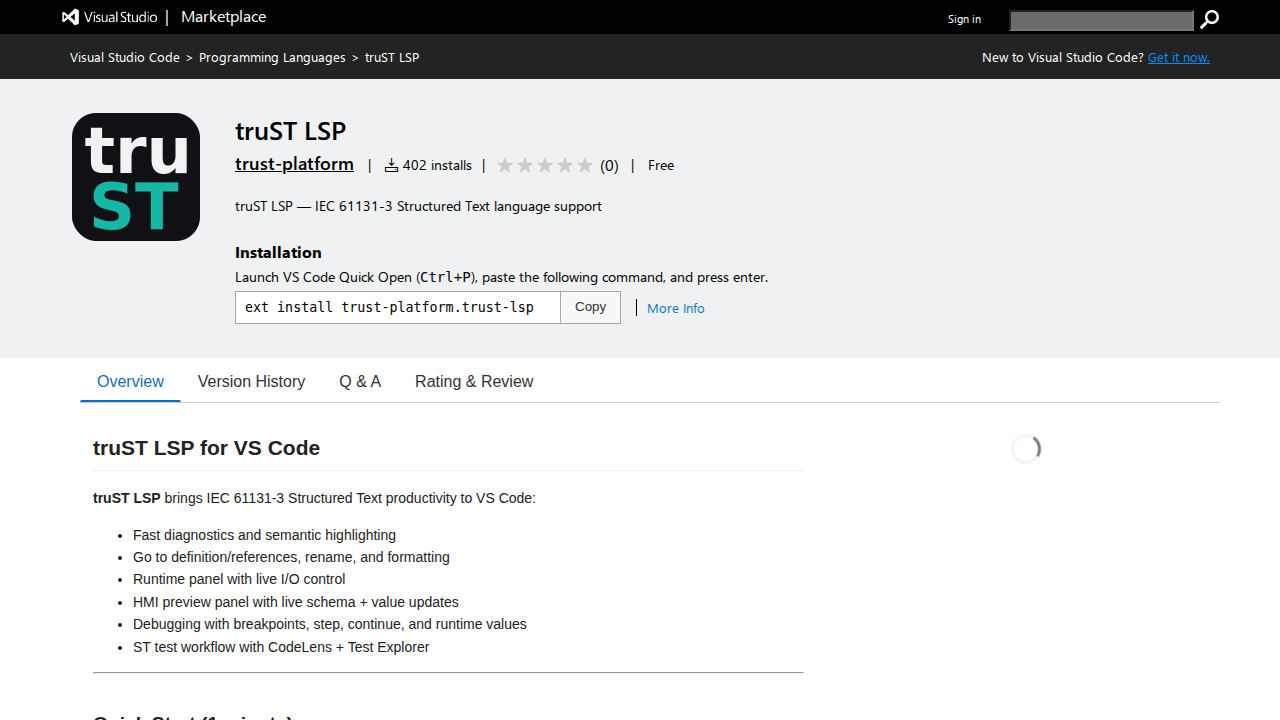
Figure: The Marketplace listing for truST LSP. Install the extension from
this page or directly from VS Code.
Step 3: Verify The Extension In VS Code
Open VS Code, press Ctrl/Cmd+Shift+P (Cmd+Shift+P on macOS), and type
Structured Text:. If the extension is healthy, the truST commands appear
immediately in the Command Palette.
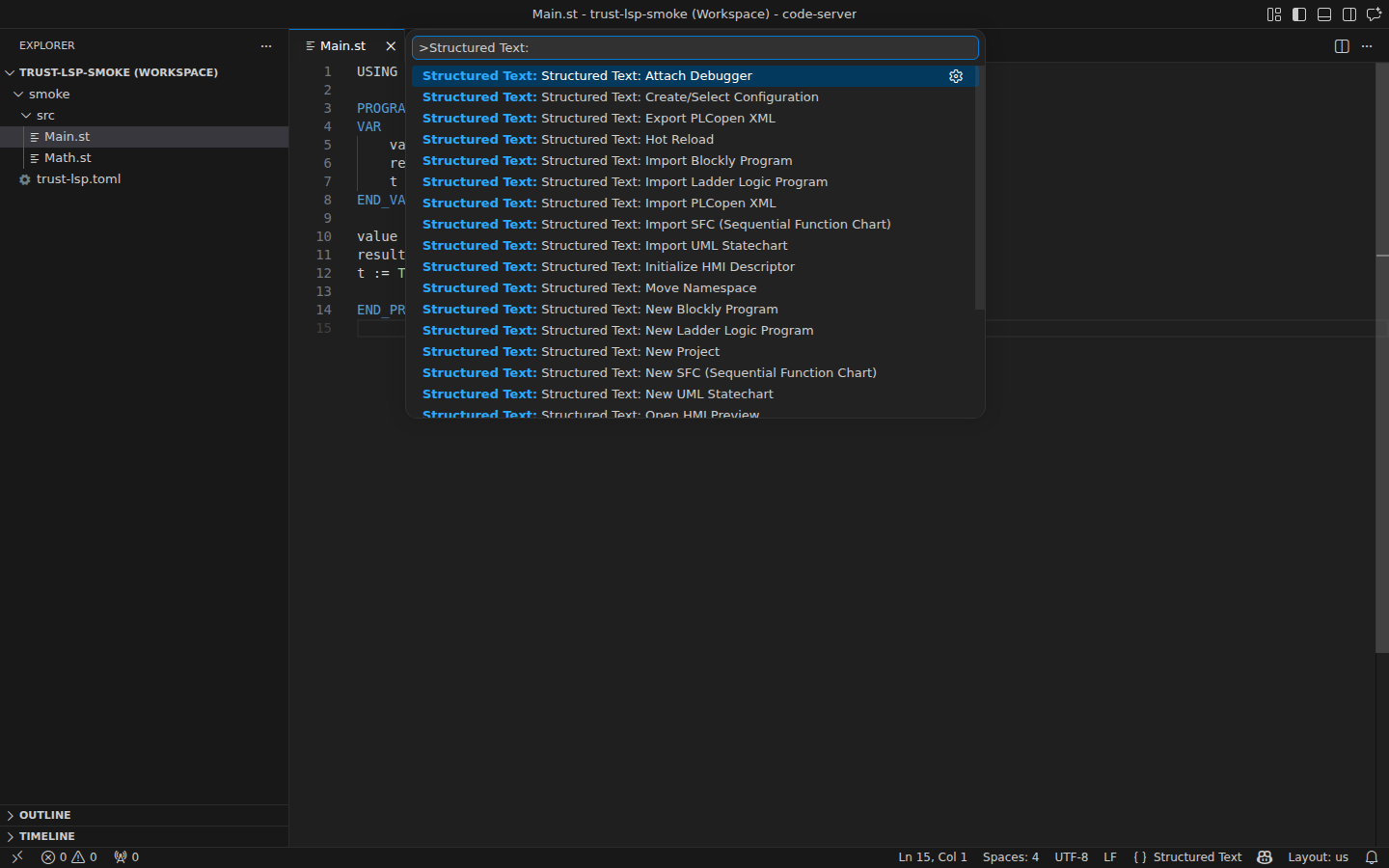
Figure: Structured Text: commands visible in the Command Palette. This is
the fastest proof that the editor-side install worked.
Step 4: Download Runtime Binaries
Download the current runtime bundle from GitHub Releases:
https://github.com/johannesPettersson80/trust-platform/releases/latest
Choose the package that matches your machine:
trust-runtime-linux-x64.tar.gztrust-runtime-linux-arm64.tar.gztrust-runtime-darwin-x64.tar.gztrust-runtime-darwin-arm64.tar.gztrust-runtime-win32-x64.zip
Use Install On Target when you need the runtime to survive reboot on a Raspberry Pi or another Linux host.
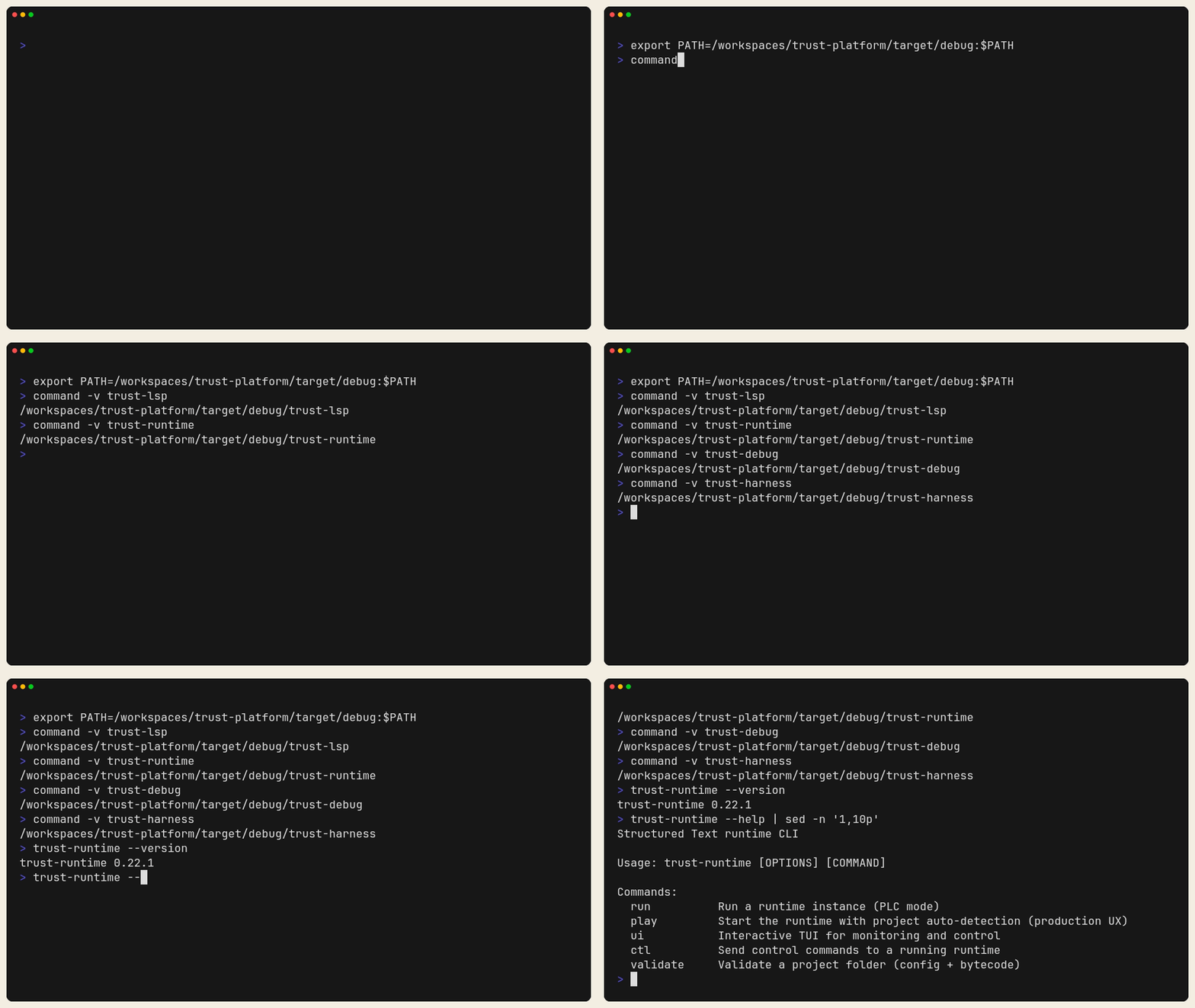
Figure: After download and install, trust-runtime --version and
trust-runtime --help should respond locally. This is the fastest terminal
check that the runtime bundle landed on your machine correctly.
If It Did Not Work
No Structured Text: commands appear
- restart VS Code once
- confirm the extension is enabled for this workspace
- reinstall the extension from the Marketplace listing
The runtime download is missing for your platform
- check the latest GitHub release again
- if you need an unreleased build, use Install From Source