Runtime UI, Control, And Control Endpoint
Use the terminal UI, CLI, and web UI to inspect or control a running runtime.
Control options
| Interface | Best for |
|---|---|
trust-runtime ui |
interactive operator and developer terminal UI |
trust-runtime ctl |
scriptable control actions against a running runtime |
| web UI | browser-based operator and runtime workflows |
trust-runtime ui
Use the terminal UI when you want a live operator-style view without opening the browser or VS Code.
trust-runtime ui --project ./my-plc
Useful options:
--refresh--no-input--beginner
trust-runtime ctl
Use ctl when the workflow must be scriptable.
trust-runtime ctl --project ./my-plc status
trust-runtime ctl --project ./my-plc io-read
trust-runtime ctl --project ./my-plc restart
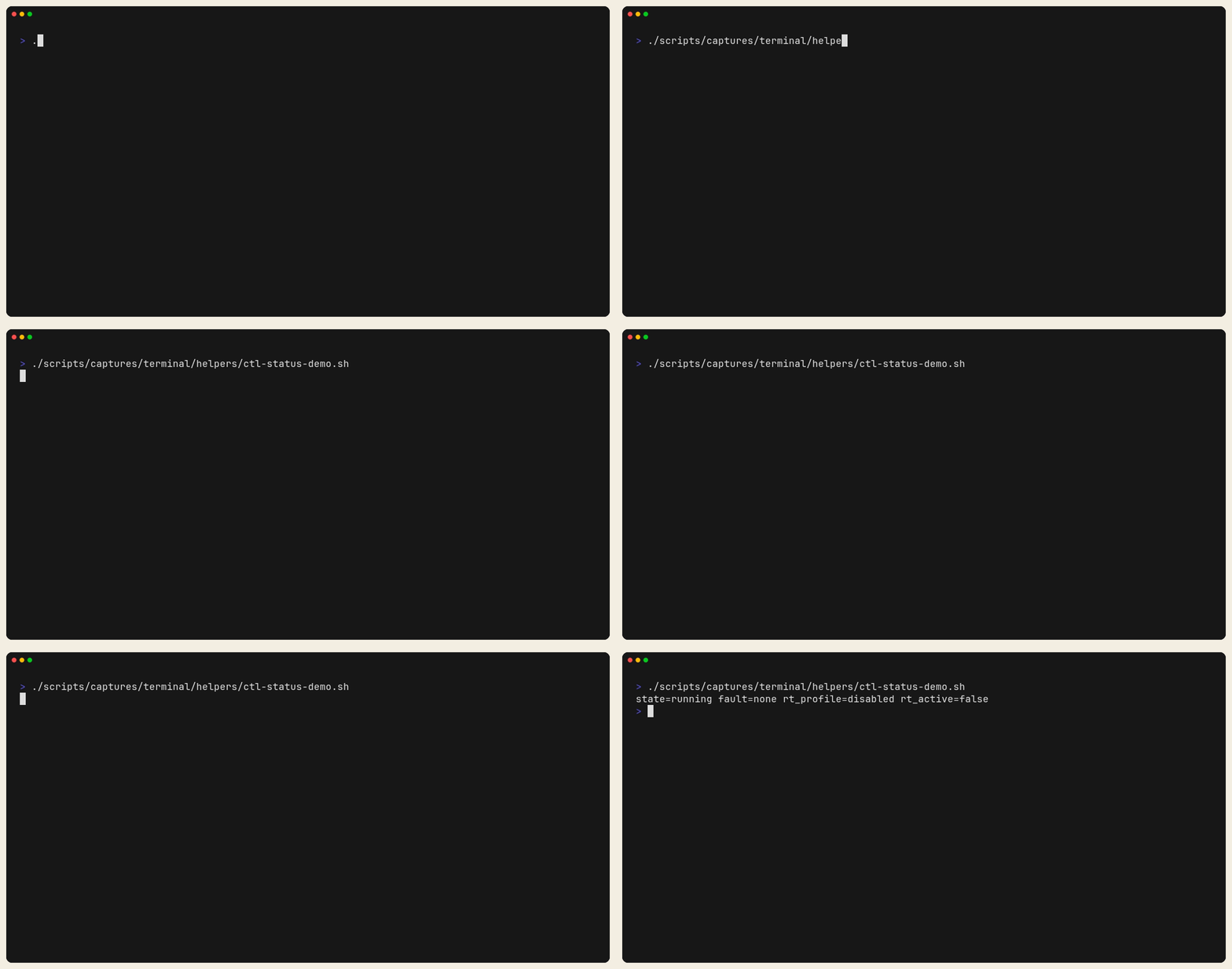
Figure: ctl status returning the live runtime state from a running local
bundle. This is the quickest scriptable “is it alive?” check.
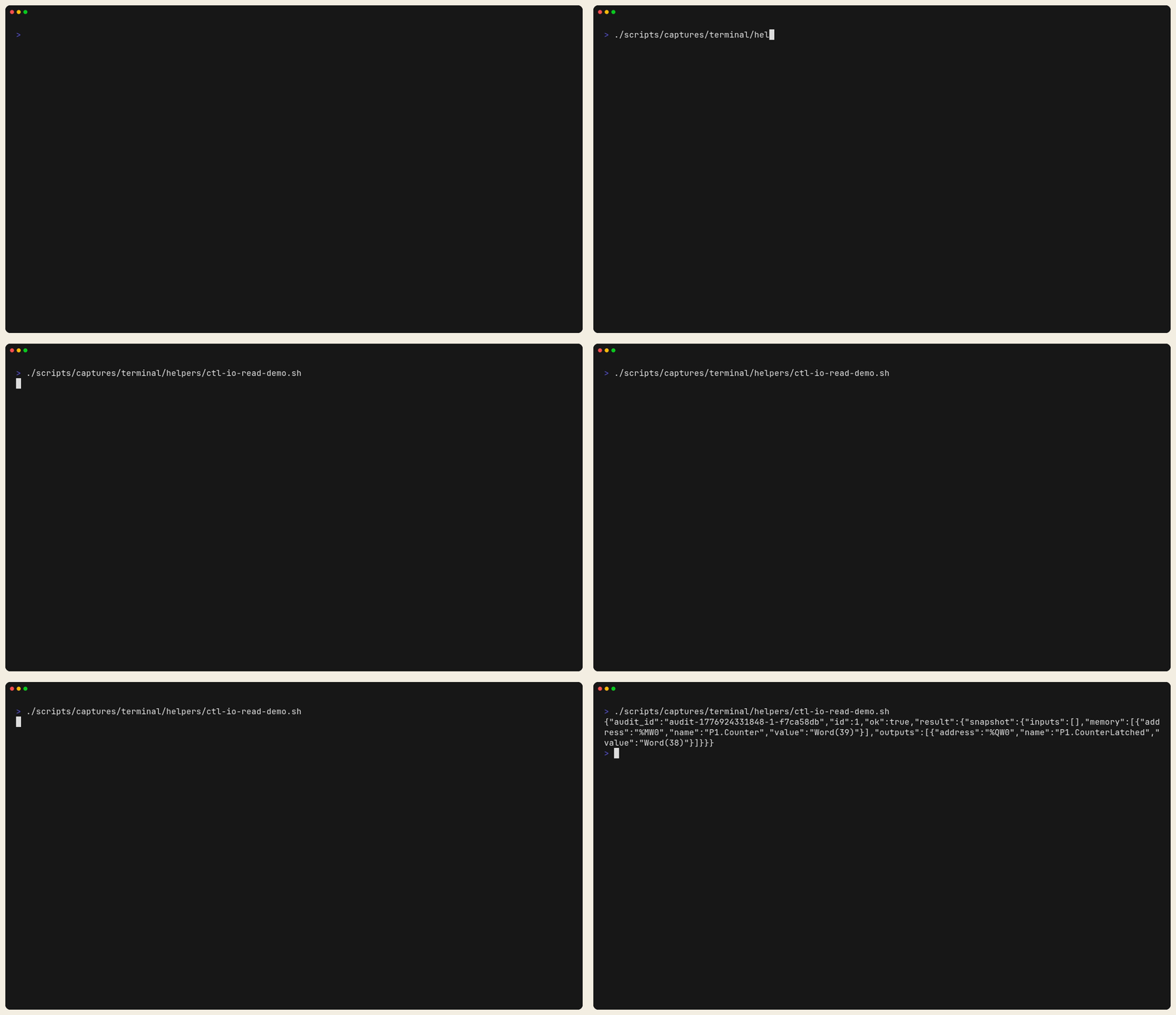
Figure: ctl io-read returning the current %M and %Q snapshot. Use this
when you need a terminal proof of actual signal values.
Figure: ctl io-write against a debug-mode runtime followed by io-read.
This is the write path you use in development, not the guarded production path.
Important command families:
status,health,statsio-read,io-write,io-force,io-unforcerestart,shutdownconfig-get,config-set
--endpoint overrides only the project's endpoint. Authentication uses
--token, then TRUST_CTL_TOKEN, then the token in the selected project's
runtime.toml. A rejected control response makes ctl exit non-zero, so shell
scripts can treat a successful process exit as an accepted runtime command.
Capabilities
- manual control
- operator terminal workflows
- read and write checks against a live runtime
- control endpoint usage