HMI Authoring
Create or change the project-owned hmi/ directory: descriptor files, process
SVG bindings, write policy, validation, preview, and AI-assisted HMI tooling.
For operating an already-running HMI, use HMI And Web UI.
HMI Directory Workflow
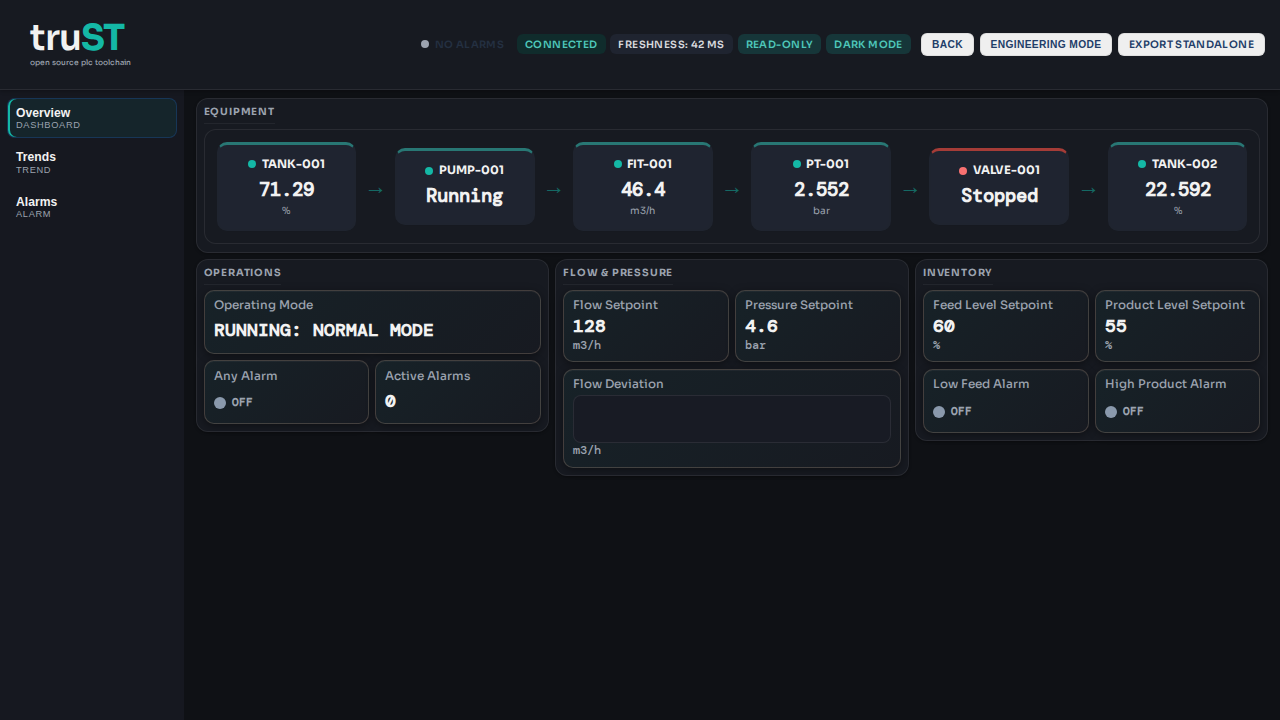
Figure: A rendered HMI page from the shipped tutorial. Read the workflow
below while comparing the browser view with the hmi/ files that define it.
This guide covers the production HMI descriptor workflow using the hmi/ directory, including process pages (plant.svg / plant-minimal.svg) and LM tool invocation patterns.
1. Initialize hmi/
Generate a deterministic descriptor scaffold from PLC sources:
trust-runtime hmi --project <project-root> init
VS Code command alternative:
Structured Text: Initialize HMI Descriptor
Expected output directory shape:
hmi/
  _config.toml
  overview.toml
  trends.toml      # optional when enough numeric points exist
  alarms.toml      # optional when alarm-worthy points exist
2. Descriptor layout basics
hmi/_config.toml controls theme, refresh, and write policy. Page files (hmi/*.toml) define page metadata and widgets.
Minimal write policy example (default-safe):
[write]
enabled = false
default_role = "viewer"
allowlist = []
Controlled write example:
[write]
enabled = true
default_role = "operator"
allowlist = [
  "PROGRAM PumpStation.PumpSpeed",
  "GLOBAL Control.StartButton",
]
Write guardrails remain strict:
- writes are disabled unless explicitly enabled
- target paths must be allowlisted
- runtime authz still applies per request
3. Process pages (kind = "process")
Use process pages when binding live values to SVG elements.
Example hmi/plant.toml:
title = "Plant"
kind = "process"
svg = "plant.svg"

[[bind]]
selector = "#tank_level"
attribute = "height"
source = "PROGRAM PumpStation.Level"
format = "%.0f"
scale = { in_min = 0.0, in_max = 100.0, out_min = 20.0, out_max = 180.0 }

[[bind]]
selector = "#pump_state"
attribute = "class"
source = "PROGRAM PumpStation.Run"
map = { "true" = "running", "false" = "stopped" }
plant.svg and plant-minimal.svg templates
The repository includes production-ready templates:
hmi/plant.svghmi/plant-minimal.svghmi/plant.bindings.example.toml
Typical usage:
- Start from
hmi/plant-minimal.svgfor compact dashboards or low-density screens. - Start from
hmi/plant.svgfor a richer process board with more symbol anchors. - Copy selector IDs into
[[bind]]entries in your page TOML. - Validate with
trust_hmi_validate(or runtime integration tests) before enabling writes.
You can embed reusable symbols from hmi/pid-symbols/:
<image href="pid-symbols/PP001A.svg" x="500" y="450" width="96" height="96"/>
4. LM tool invocation patterns
Use deterministic tool order instead of direct free-form file rewrites.
Scaffold-first flow
trust_hmi_inittrust_hmi_get_bindingstrust_hmi_get_layouttrust_hmi_apply_patchwithdry_run=truetrust_hmi_apply_patchwithdry_run=false
Intent-to-evidence flow
trust_hmi_plan_intenttrust_hmi_trace_capturetrust_hmi_generate_candidatestrust_hmi_validate(optionally with prune/retention args)trust_hmi_preview_snapshottrust_hmi_run_journeytrust_hmi_explain_widget
If validation or journey steps fail, iterate and re-run before accepting changes.
5. Runtime + panel verification
Runtime verification:
cargo test -p trust-runtime --test hmi_readonly_integration
VS Code extension verification:
cd editors/vscode && npm run lint
cd editors/vscode && npm run compile
cd editors/vscode && ST_LSP_TEST_SERVER=<path>/trust-lsp npm test
Open preview:
Structured Text: Open HMI Preview
Live descriptor refresh is supported for hmi/*.toml and hmi/*.svg updates.
What Success Looks Like
hmi/exists in the project and contains the descriptors, assets, and policy files the runtime will serve.- Preview shows the expected widgets with live values before any write-capable control is enabled.
- Operator writes go through the normal HMI write allowlist, role policy, and audit path.